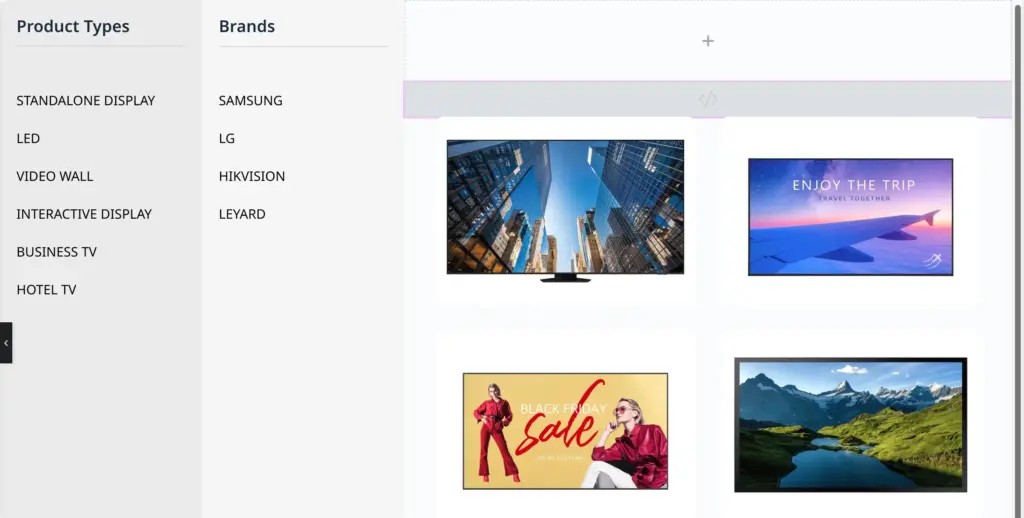
To transition from static images to Elementor Loop Grids, we need to make one crucial change to your logic: interactivity.
With a static image, pointer-events: none; is fine because the user doesn’t need to click the image itself. However, Loop Grids contain products, posts, or buttons that your users will want to click. If we leave pointer-events: none; on permanently, your users won’t be able to click anything inside the grid.
Here is the rewritten code. It hides the inactive grids safely and brings the active grid to the front, restoring its clickability.
<script>
document.addEventListener('DOMContentLoaded', function() {
    // Map your Menu Classes to your new Loop Grid Container IDs
    const config = {
        '.link-11': '#grid-11',
        '.link-12': '#grid-12',
        '.link-13': '#grid-13',
        '.link-14': '#grid-14',
        '.link-15': '#grid-15',
        '.link-16': '#grid-16'
    };

    // Change from .hover-image to .hover-grid
    const allGrids = document.querySelectorAll('.hover-grid');

    Object.keys(config).forEach(linkClass => {
        const menuItems = document.querySelectorAll(linkClass);
        const targetGrid = document.querySelector(config[linkClass]);

        menuItems.forEach(item => {
            item.addEventListener('mouseenter', function() {
                // 1. Hide all grids, disable clicks, and push them to the back
                allGrids.forEach(grid => {
                    grid.style.opacity = '0';
                    grid.style.visibility = 'hidden';
                    grid.style.pointerEvents = 'none';
                    grid.style.zIndex = '0';
                });

                // 2. Show the target grid, enable clicks, and bring to the front
                if(targetGrid) {
                    targetGrid.style.opacity = '1';
                    targetGrid.style.visibility = 'visible';
                    targetGrid.style.pointerEvents = 'auto';
                    targetGrid.style.zIndex = '10';
                }
            });
        });
    });
});
</script>

<style>
    /* Apply this class to all your Loop Grid widgets */
    .hover-grid {
        transition: opacity 0.4s ease-in-out, visibility 0.4s ease-in-out;

        /* Set the default state to hidden for all grids */
        opacity: 0;
        visibility: hidden;
        pointer-events: none;

        /* Optional: If your grids aren't stacking neatly on top of each other
           in Elementor, uncomment the lines below to force them to stack */
        /* position: absolute; */
        /* top: 0; */
        /* left: 0; */
        /* width: 100%; */
    }

    /* Force the FIRST grid to be visible by default on page load */
    #grid-11 {
        opacity: 1 !important;
        visibility: visible !important;
        pointer-events: auto !important;
        z-index: 10 !important;
    }
</style>.link-11, .link-12, etc., assigned to them.hover-gridgrid-11, grid-12, etc.Absolute in the Advanced tab so they sit perfectly on top of one another.